






 ×

RepairCMS × seven.io · SMS integration
You change the status. Your customer gets the message.
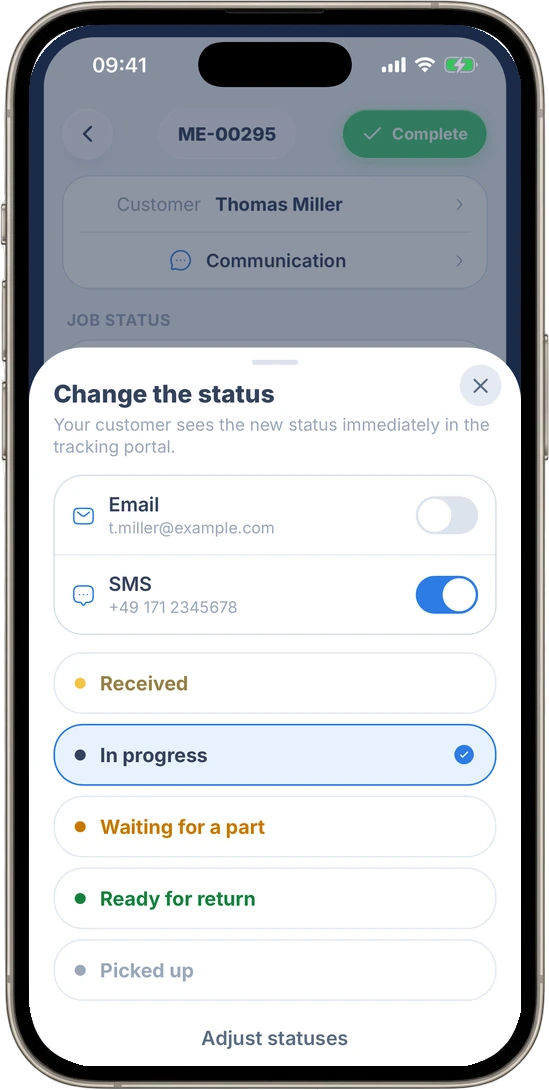
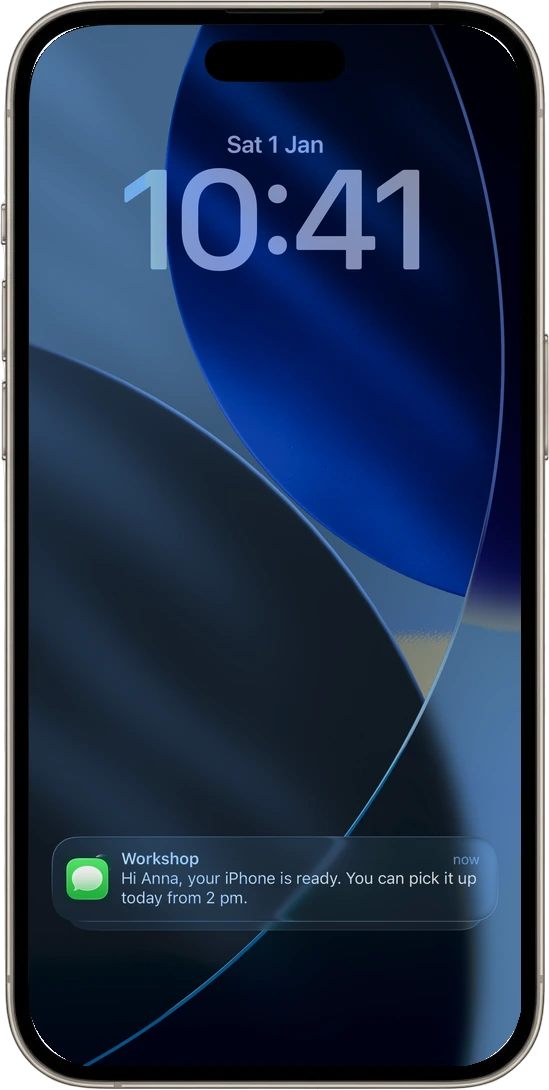
When a job is created, the repair moves forward or the device is ready, RepairCMS can send the matching SMS through your seven.io account. Your customer gets it straight on their phone and can follow the repair through the tracking link.
The SMS app is included in every RepairCMS plan. Messages are billed through your own seven.io account.
“Is my repair ready yet?” gets answered sooner.
Once customers have dropped off a device, they want to know what happens next. The SMS integration connects key steps in the repair job to a short message. Your team doesn't have to pass on every status update by hand, and your customer gets a direct way to see how the repair is going.
- New job confirmationYour customer gets a confirmation as soon as the job is created.
- Job status changeYou update the job. If this event is switched on, RepairCMS can send the matching SMS.
- Repair completeYour customer learns that the repair is done.
You decide which of these messages are active. All three are off at the start.
One change on the job. One matching message to your customer.

 Your customer
You work in RepairCMS.
You create a job, change its status or complete the repair.
RepairCMS fills in your template.
Details such as the first name, job number or tracking link are added for this job.
seven.io sends the SMS.
The message goes through your own seven.io account to your customer's mobile number.

Your words. Your sender. The right moment.
You can save a separate SMS text for New job confirmation, Job status change and Repair complete. Placeholders fill in the matching job details when the message goes out. The preview shows how the message looks on a phone, and a counter shows the approximate length and the number of SMS.
Before you switch a template on for customers, you can send it to yourself with “Test to me”. The sender can be a name of up to 11 characters or a phone number.


A personal message straight from the job.
“You can pick up your device today from 2 pm.” A detail like that doesn't always fit an automatic template. So you can write your own SMS right on the job, on the computer or in the RepairCMS App. The message stays visible on the job, and you'll find every SMS sent in the Logs tab of the SMS app.
See what happened to an SMS.
The Logs tab shows which message belongs to which job, when it was sent and what the result was. If an SMS wasn't sent, RepairCMS shows the reason, such as a missing or invalid mobile number. With delivery reports set up, you also see the delivery status reported by seven.io.
“Accepted by provider” means seven.io has received the message. That isn't confirmed delivery yet, and it doesn't prove that your customer has read it.
 ×
Connect your seven.io account to RepairCMS
- Create a Live API key with SMS permission in seven.io.
- In RepairCMS, open Apps → SMS, paste the key and set your sender.
- Confirm the required customer consent to receive SMS and switch on the events you want. Edit the templates and send a test SMS to yourself.

What you need: a seven.io account with available balance, a mobile number for the customer and the customer's required consent to receive SMS. Your business is responsible for this consent.
Read the full setup guide in the RepairCMS Help CenterThe connection is included. seven.io bills the SMS.
The SMS app is included in every RepairCMS plan. You use your own seven.io account, and seven.io bills the SMS you send directly from your balance there. Longer texts can be made up of several SMS, and RepairCMS shows the expected number while you write.
Frequently asked questions
Does SMS replace email?
SMS adds to your email notifications. You choose which SMS can go out with the three events in RepairCMS.
Can I switch on just some of the notifications?
Yes. New job confirmation, Job status change and Repair complete can each be switched on separately. All three are off at the start.
Can my customer reply to the SMS?
If you use a phone number as the sender, a reply can reach the phone with that number. Replies don't appear in the RepairCMS chat on the job. Your customer can't reply to a sender name.
What happens if there's no mobile number on file?
RepairCMS doesn't send an SMS in that case. You can see the reason in the Logs tab.
Can I see whether a message arrived?
With delivery reports set up, you see the delivery status reported by seven.io. A delivery status doesn't prove that the message was read.
Reach your customers where they see the message right away.
Connect your seven.io account to RepairCMS and choose at which steps of the repair job your customers get an SMS.
