





B2B repair portal
Your business customers book their own repairs in your B2B portal.
Retailers, companies and multi-branch chains create their jobs in the portal and send the devices with a delivery note. In the same portal, they approve quotes and find their invoices.
5.0 out of 5 stars from 6 reviews on Software Advice
These businesses work with RepairCMS











Without a portal, jobs from business customers arrive as a box, a list and an email asking for updates.
A retailer packs devices into a box and adds a list. You type every device from the list into your system, and a few days later they email you to ask how the repair is going. With the B2B portal, your business customer creates each job themselves and sees the repair status of every device there.
How a repair runs from your business customer to the invoice.
Each device gets a separate job with its own job ID in the portal, even when several devices travel in the same box.
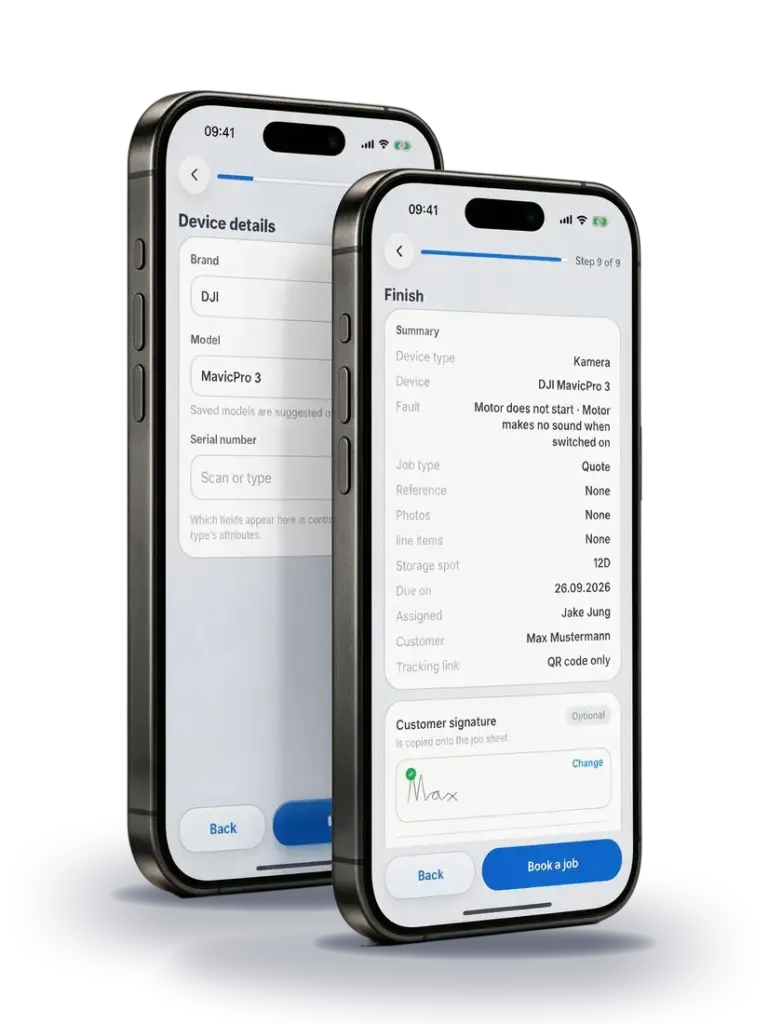
Your business customer books the repair in the portal
They set up a separate job in the portal for each device.
- They enter the brand, model, serial number or IMEI
- They describe the fault
- They choose whether they want a quote first
- They print a consignment note with a QR code and barcode and pack it with the device
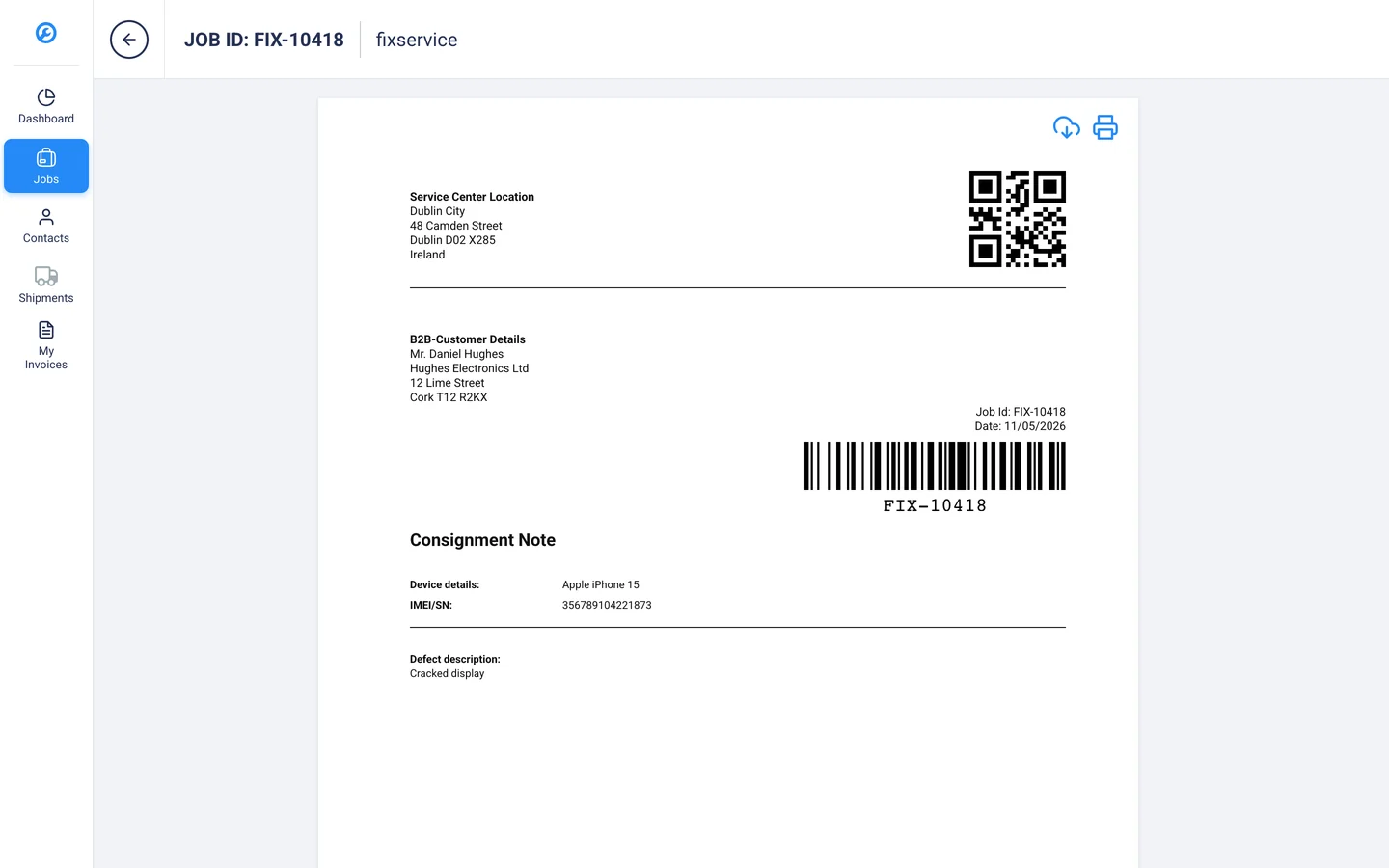
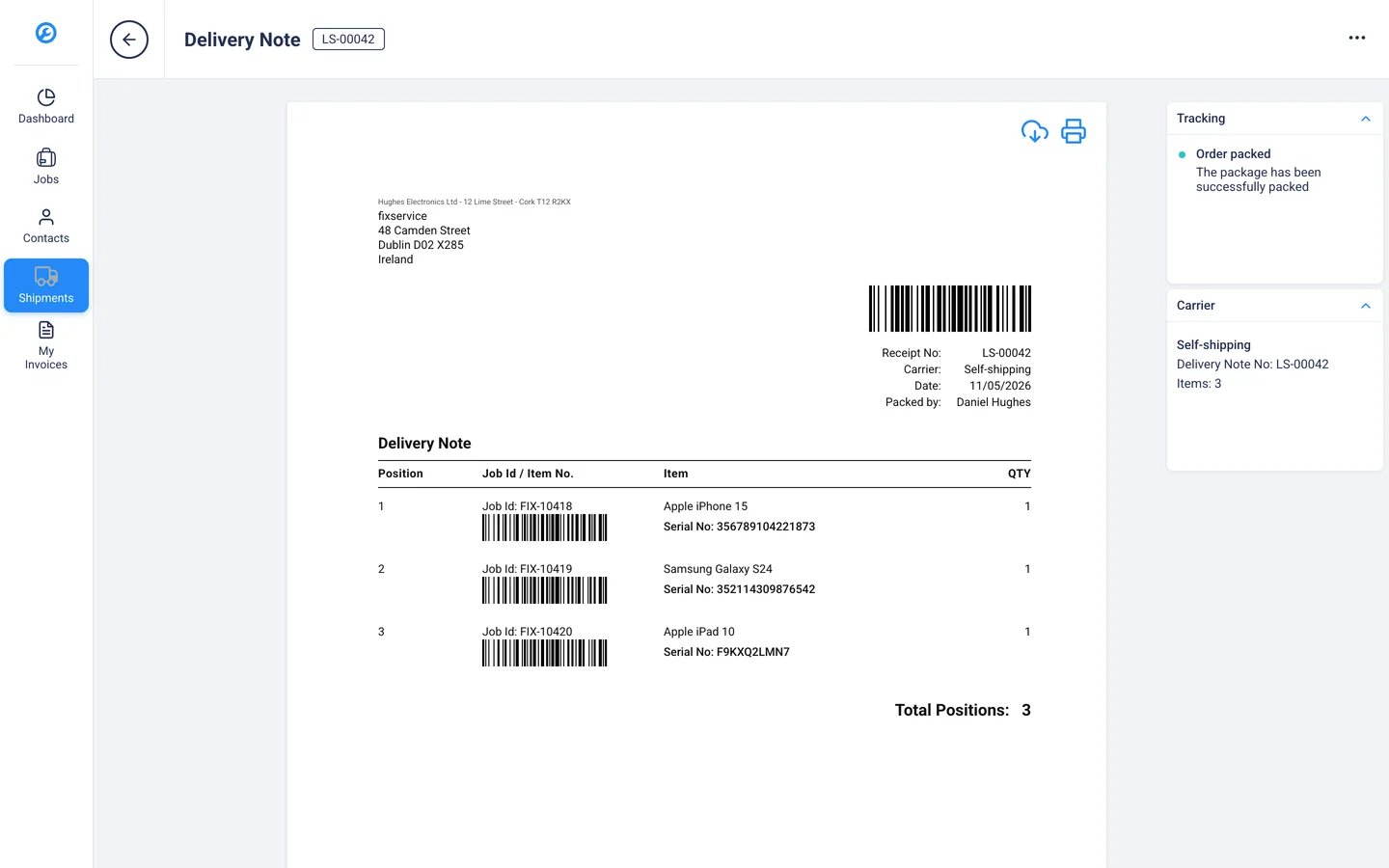
Several jobs travel on one delivery note
Under “Shipments”, your business customer groups their jobs on one delivery note.
- Each line gets its own barcode
- They send the shipment themselves or have you pick it up
- If they send it themselves, they enter the tracking number
You check the delivery in with a scanner
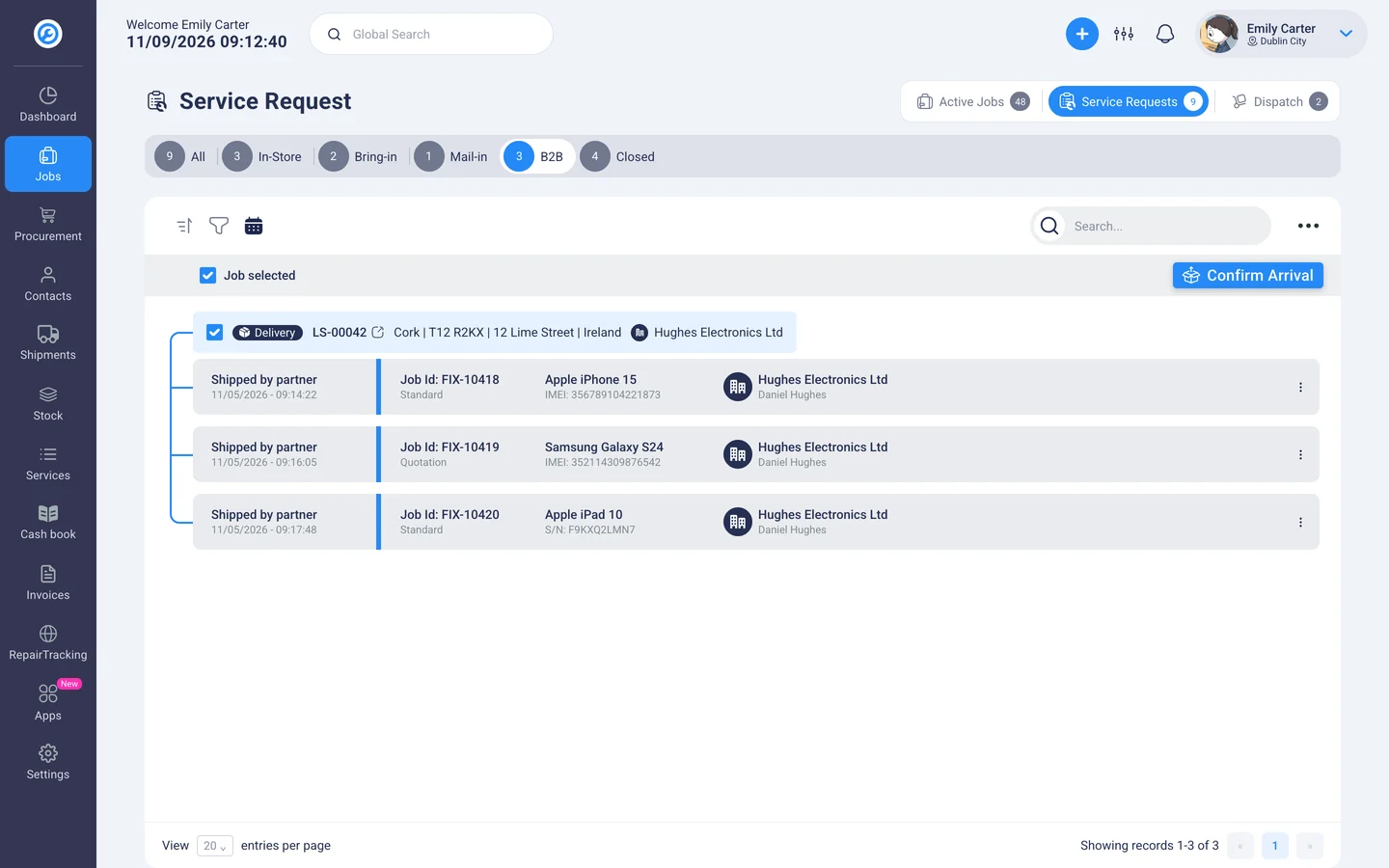
The delivery shows up for you under “Service Requests” in the B2B tab, with the delivery note number and sender.
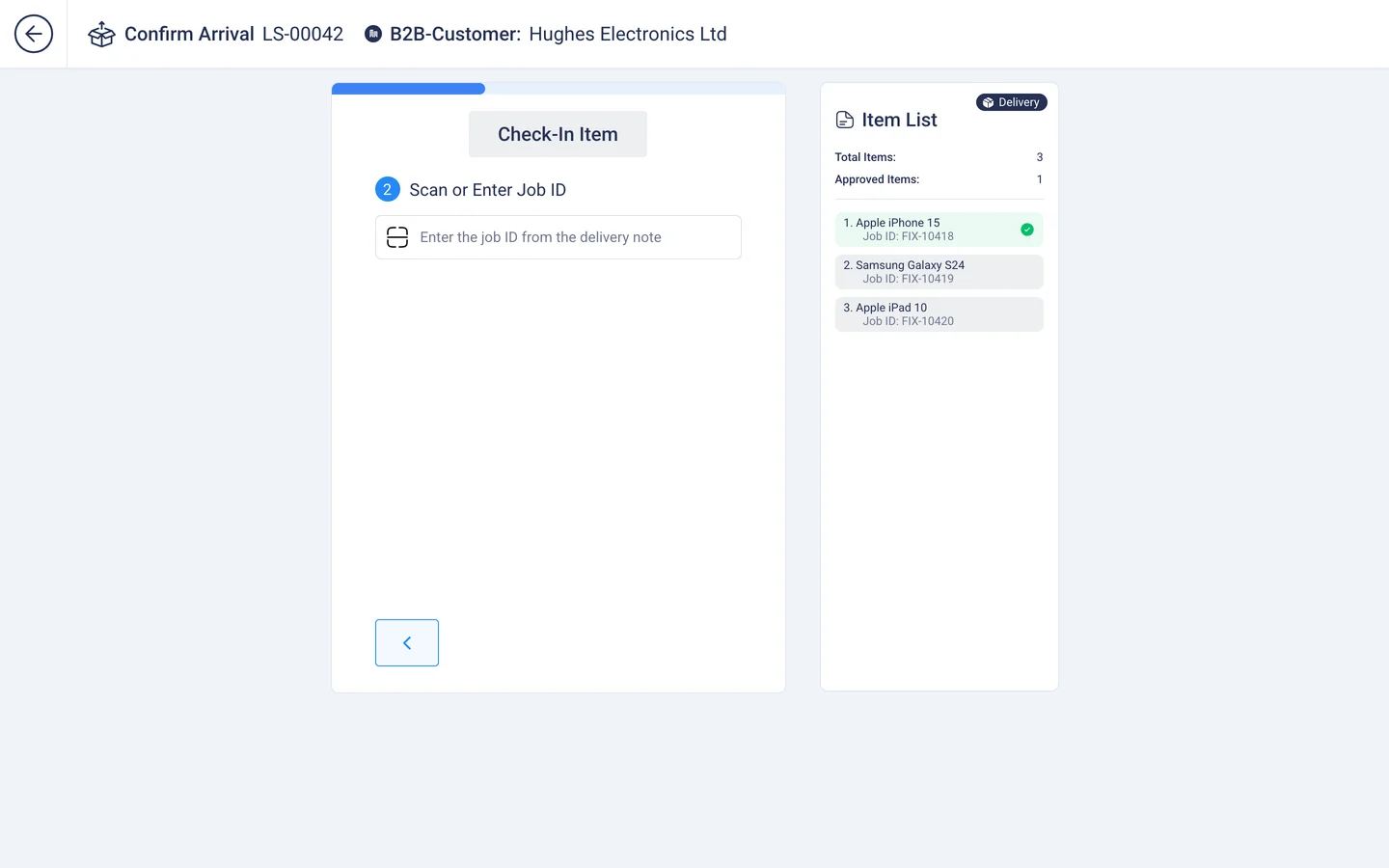
- Click “Confirm Arrival” and scan the job ID from the delivery note so RepairCMS can match it against the delivery
- Record the device's condition with photos and set its physical location
- Assign spare parts from inventory right away if needed
- Print the label with a QR code
Your business customer approves the quote in the portal
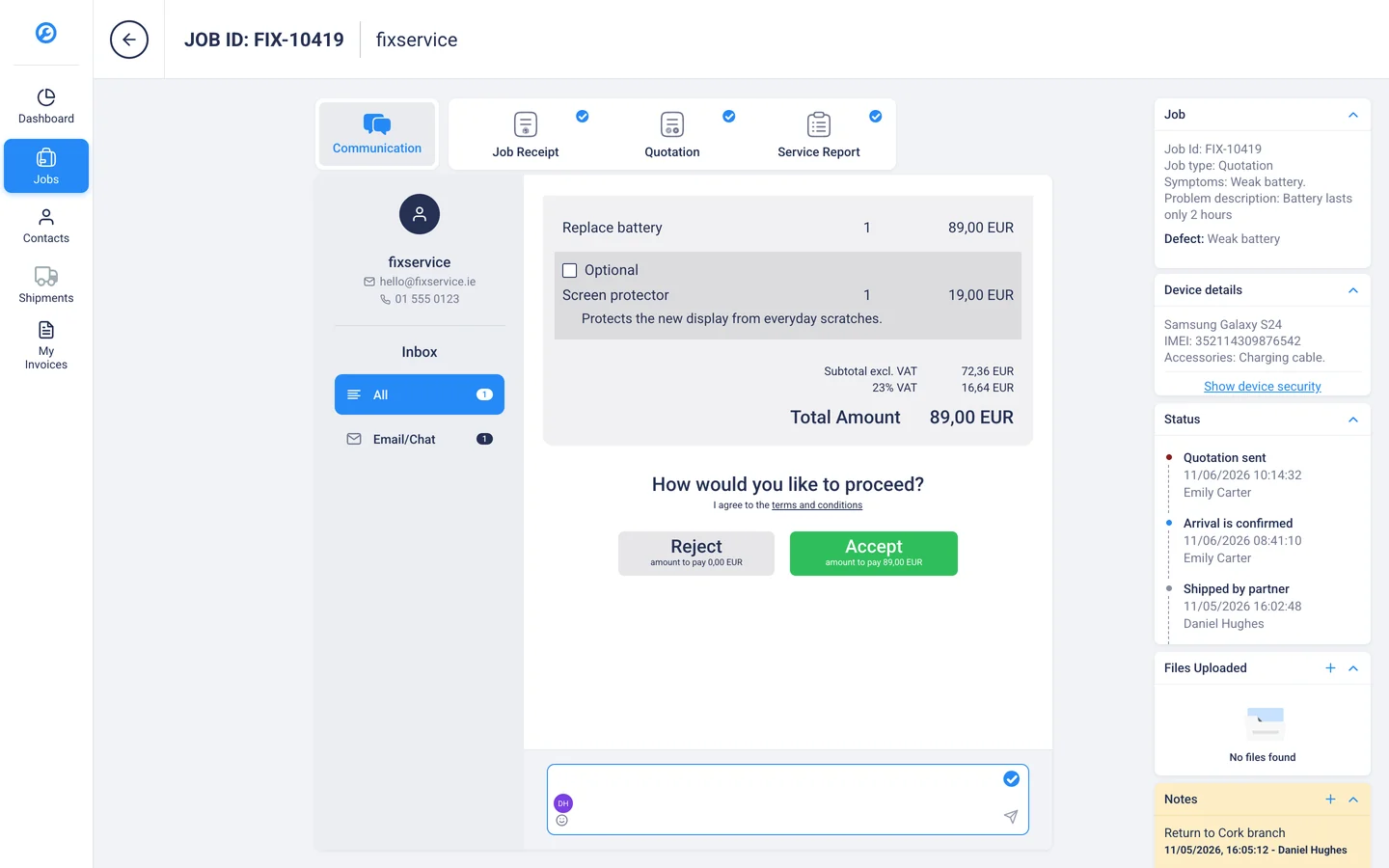
You send the quote from the job, and your business customer sees it in the portal with all line items.
- They add or remove optional items
- They accept or reject the quote
- You both clear up questions on the same job in the “Communication” tab
The invoice is ready in the portal
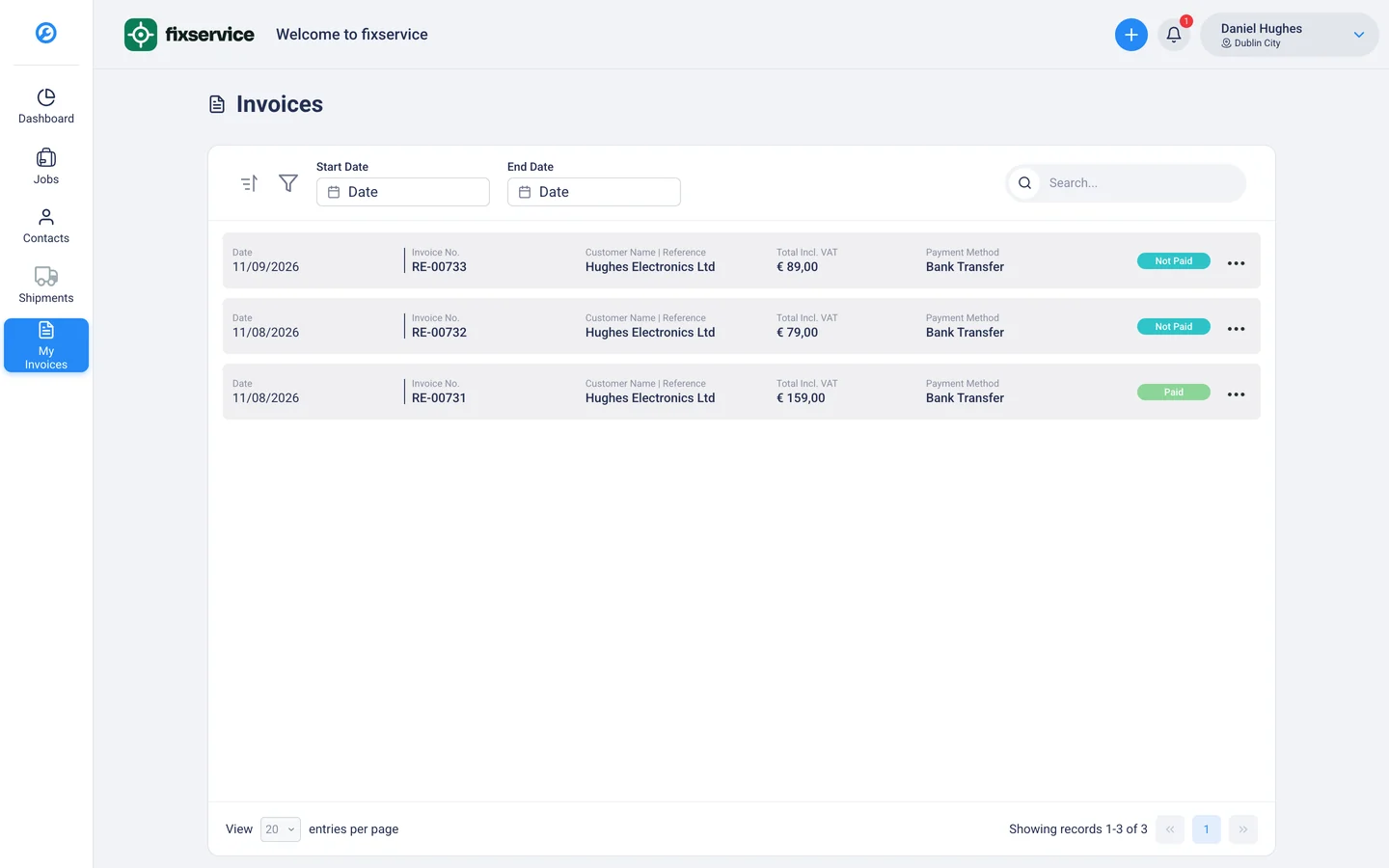
Your business customer finds the finished invoice under “My Invoices”.
- Line items from the quote and service report, carried over by RepairCMS
- Amount and payment method
- Invoice status
Your business customers book based on your price list.
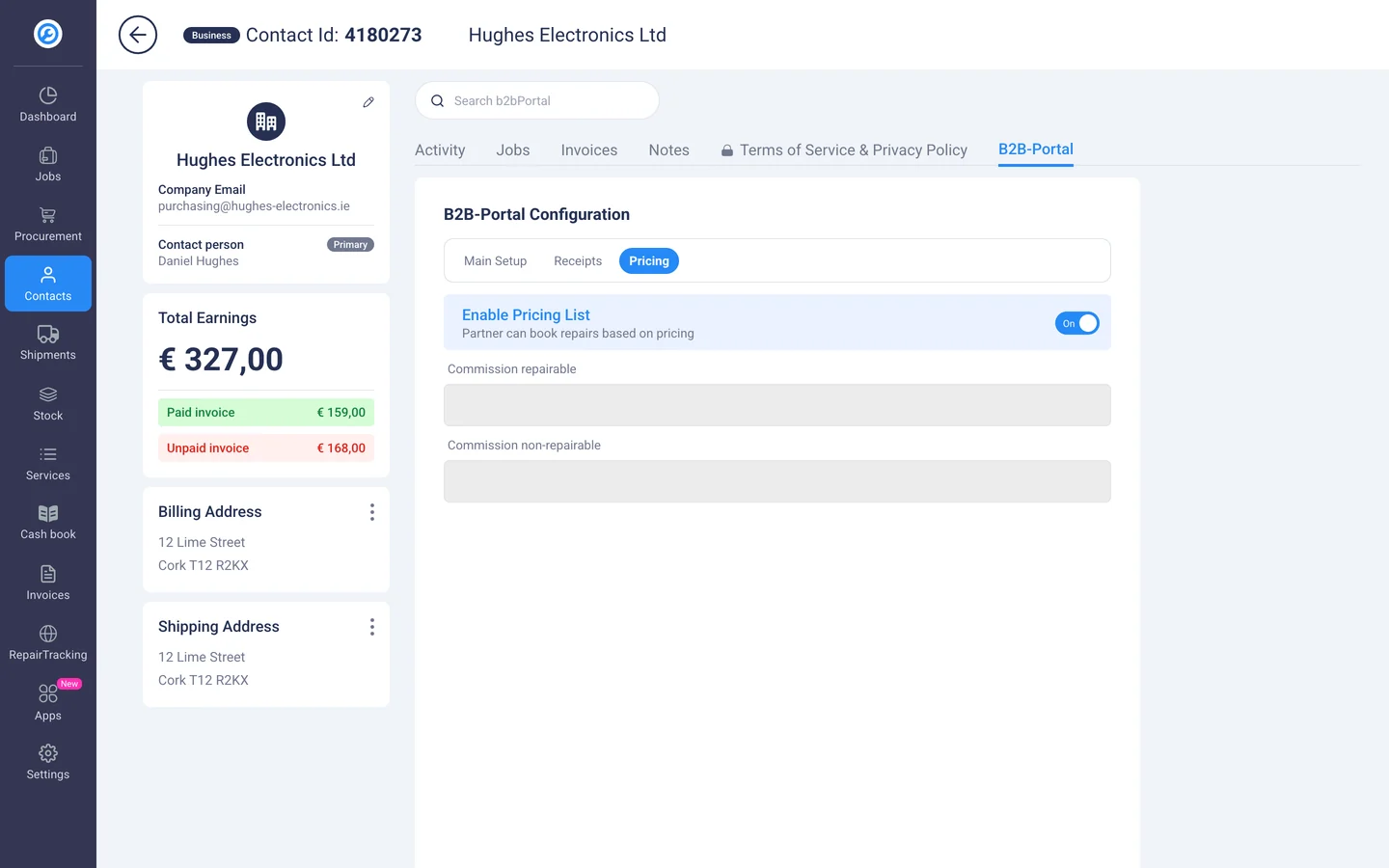
You set up your repair prices once as services in RepairCMS. On your business customer's contact, you turn on “Enable Pricing List” under “Pricing” in the “B2B-Portal” tab. If your team finds more to repair during diagnosis, you send a quote first, and your business customer decides in the portal. Your team uses the same services in the Express job and in the RepairCMS App. You'll find how to set up services in our guide to services.
The B2B portal fits when businesses send you devices for repair on a regular basis.
Typical business customers are retailers that pass their customers' repairs on to you, multi-branch chains that send in devices from their branches, and companies with their own devices such as work phones, laptops or coffee machines. You invite each business customer to the portal through their contact in RepairCMS. If you're a manufacturer running your own service network with dealers and service partners, take a look at our page for manufacturers.
Jobs from the portal carry on in RepairCMS like any other repair.
Your team writes the service report and the quote in the same job your business customer created in the portal. In your CRM, they're listed as a business contact, and there you also see how much revenue you make with them. If you're based in Germany and have connected Lexware Office, the invoice goes there like any other RepairCMS invoice. You'll see how a job runs from intake to pickup on our page about repair management software.
Your first business customer is in the portal in three steps.
Activate the portal
Under “Apps”, you activate the B2B Partner Portal and set the address of your portal.
Invite your business customer
On your customer's business contact, you open the “B2B-Portal” tab and send the invitation.
Enable your price list and get started
If you want, you also enable your price list for them. Your business customer then logs in to the portal and books their first job.
You'll find every step with screenshots in the guide in the Help Center.
Frequently asked questions about the B2B repair portal
What is a B2B repair portal?
A B2B repair portal is a dedicated area on the web for your business customers. There they create repair jobs, put together delivery notes for their shipments, approve quotes and view their invoices. It's also often called a B2B customer portal or partner portal. In RepairCMS, it's called the B2B Partner Portal and connects directly to your repair management. Every booking lands with you under “Service Requests”. For private customers, there's also the customer portal, where they follow their repair.
Can a business customer send several devices at once?
Yes. Each device gets its own job with its own job ID, so status, quote and invoice stay traceable for every device. For shipping, your business customer groups several jobs on one delivery note. When you confirm the arrival, you scan the job IDs from the delivery note, and RepairCMS matches each device against the delivery.
How does my business customer approve a quote?
You send the quote from the job, and your business customer sees it in the portal on the same job. There they add or remove optional items and accept or reject the quote. If the quote is rejected, you can set an amount to pay, for example for the diagnosis. The portal shows this amount to your business customer before they decide.
Does my business customer see their invoices in the portal?
Yes, under “My Invoices” with invoice number, amount, payment method and status. RepairCMS carries the line items over from the quote and service report. For business customers in another EU country, you turn on reverse charge on the document.
Who is the B2B portal for?
For repair shops and service businesses that repair devices for business customers, such as retailers, companies with their own devices and multi-branch chains. Manufacturers and brands with their own service network of dealers and service partners will find more on our page for manufacturers.
How much does the B2B portal cost?
In the free 14-day trial, you can activate the B2B portal and try it out. After the trial, you add it as an add-on in the RepairCMS Team plan. In the Enterprise plan, it's included. You'll find the add-on price on the pricing page.
Give your business customers their own portal for their repairs.
You can try RepairCMS free for 14 days without payment details and activate the B2B portal during the trial. If you'd rather go through the portal with us first, book a consultation.
